Step 1 - To Deactivate FlexODBC on your computer
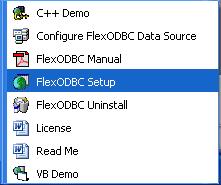
Should you need to transfer your FlexODBC license to another computer, you need to deactivate your license seat first. Click on "Start" and "All Programs" and locate the "FlexODBC Driver for DataFlex" program group on your desktop. Click on the "FlexODBC Setup" icon to launch the setup program supplied with FlexODBC.
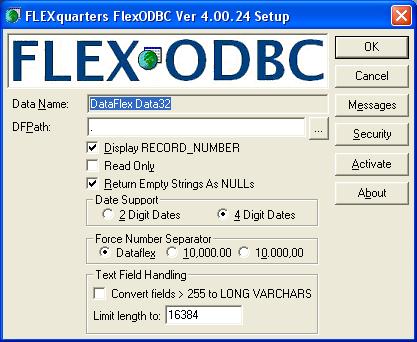
Click on the [ Activate ] button in the FlexODBC Setup.
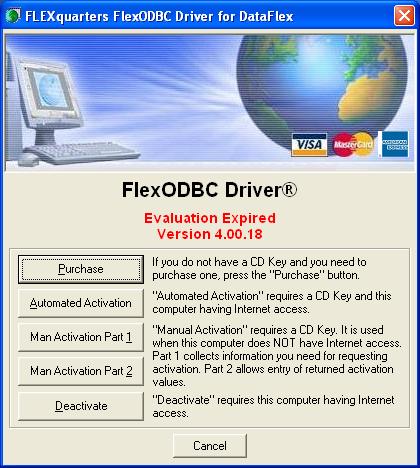
Click on the [ Deactivate ] button to use the automated deactivation procedure
(this requires that your computer has Internet access without any firewall restrictions).
Step 2 - Automated Deactivation
If your computer has direct Internet access without any firewall restrictions, click on the [ Deactivate ] button and enter your 16 digit CD Key and click "OK":
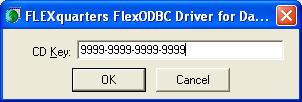
If the CD key matches your purchase,
your FlexODBC license seat will automatically be deactivated.
Step 3 - Manual Deactivation
For computers that do not have direct Internet access, or where the automated deactivation procedure fails, click on the [ Man Activation Part 1 ] button instead and enter your 16 digit CD key.
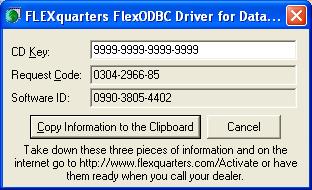
Copy the information from your computer screen (not the example
shown here) into the image directly below and click on "Process"
to generate a code to deactivate FlexODBC. Click on the "Copy
Information to the Clipboard" button to save your CD Key.
If you have correctly entered your CD Key, Request Code and Software ID,
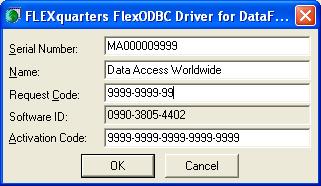
your deactivation will now be processed. Click on the "Man Activation Part 2"
button on the computer that has FlexODBC installed on it and copy and enter your
Serial Number, Name, Request Code and Deactivation Code from the above
image and click "OK". If you have entered the information incorrectly, you will receive a
"CD Key not found" message.
Write down your CD Key and Software ID on a sheet of paper
and click on the [ OK ] button to generate a verification number.
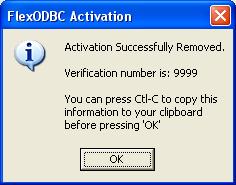
Copy the CD Key, Software ID and the Verification number from your
computer screen (not the example shown here) into the image directly
below and click on "Process" to confirm your deactivation of FlexODBC.
Once you process your verification number, your copy of FlexODBC will then be
successfully deactivated on your computer so that you can transfer
the license to your new computer!
See How do I activate FlexODBC? How can I manually activate FlexODBC?
to activate the license on your new computer.
Note: Your deactivation may take 24 to 48 hours to process depending on
your region and license pack.
Click "OK" and "Cancel" to exit the FlexODBC Setup screen.