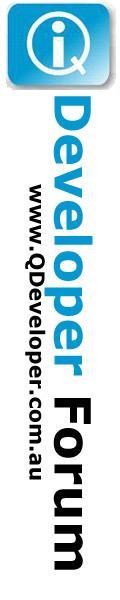
Let's start from the beginning. Open MS Access and create a blank database. Using the File menu pulldown, Get External Data and select Link Tables... :
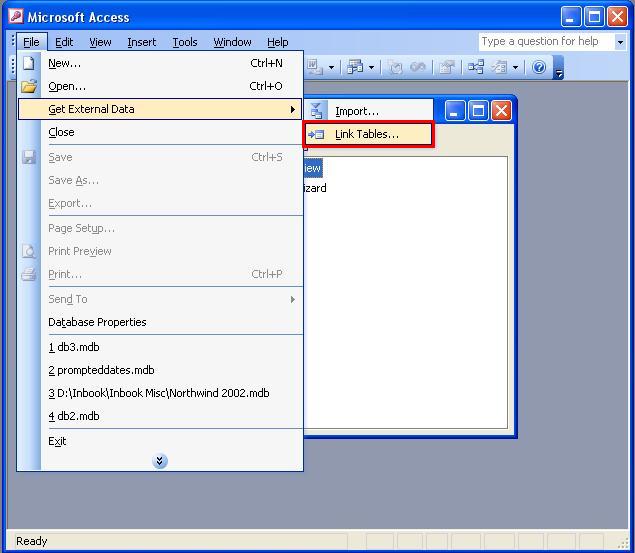
Select Files of type: ODBC Databases () :
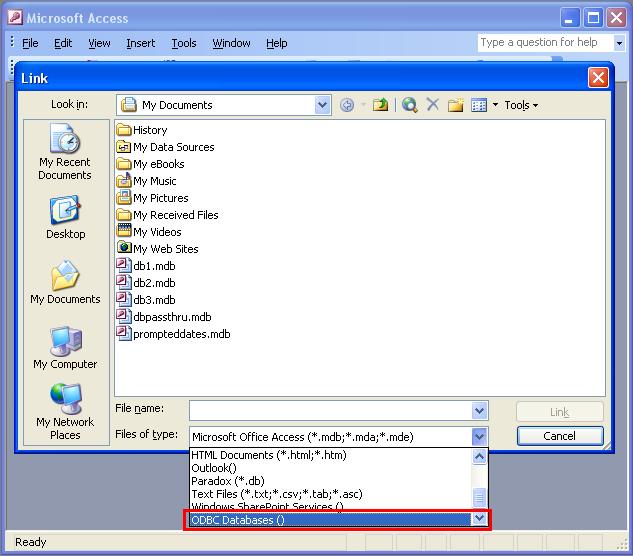
Select Machine Data Source and QuickBooks Data :
QuickBooks Integrated Applications with Certificate
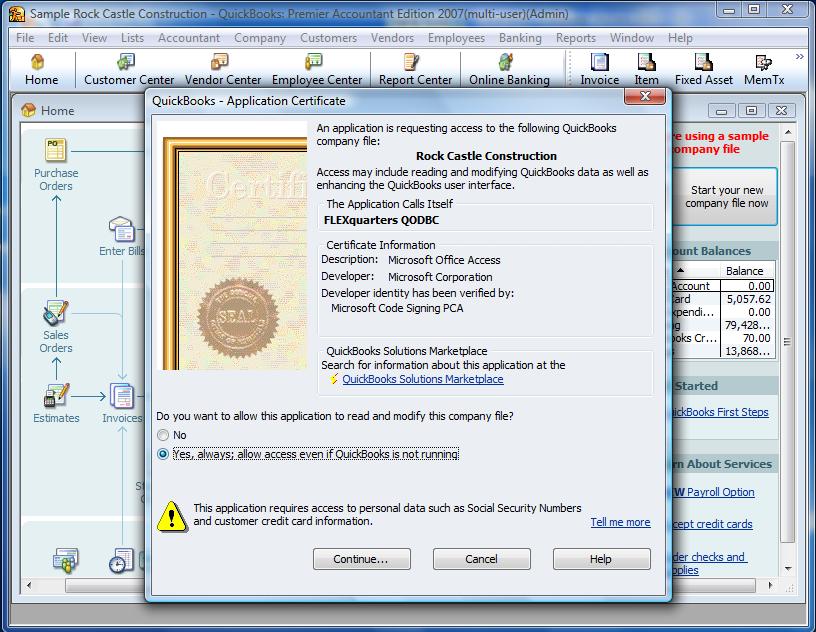
When Microsoft Access starts QODBC and connects to a company file for the first time, QuickBooks will ask you permission for Microsoft Access to access your QuickBooks data. Check the "Yes, always; allow acess even if QuickBooks is not running" option and your FLEXquarters QODBC application will be added to the Integrated Application list in your company file. Click on [ Continue.... ] to continue.
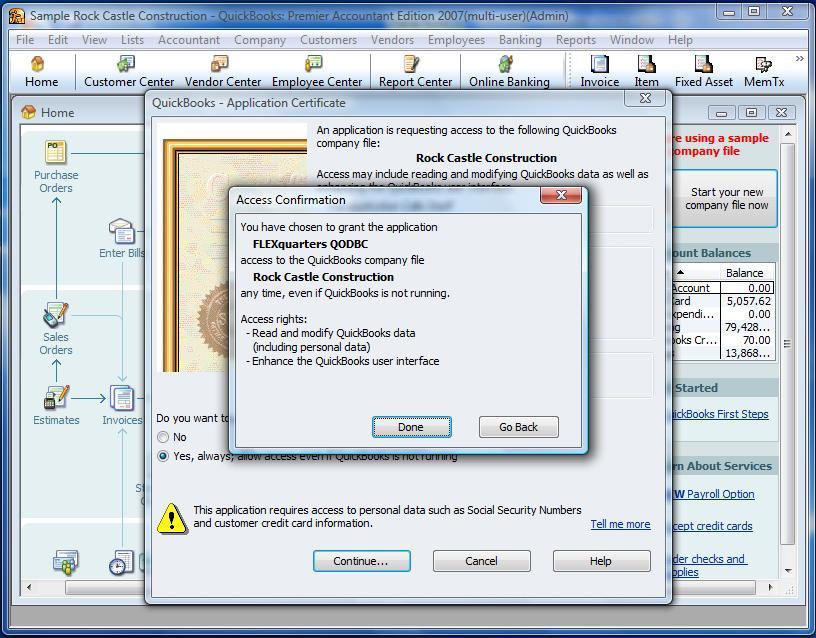
QuickBooks will then confirm access, click on [ Done ] to continue.
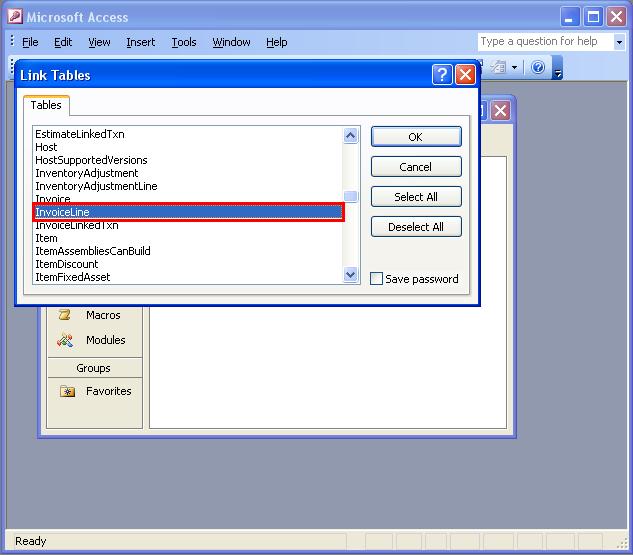
Select the InvoiceLine table used by this example :
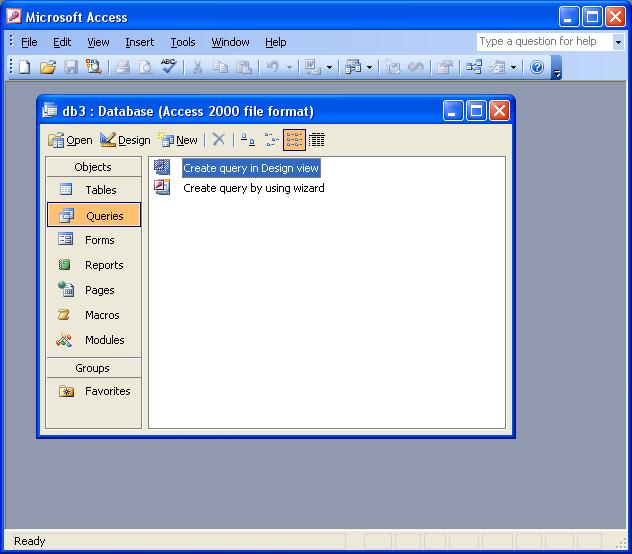
Select the Queries tab and Create Query in Design Mode view :
Select the linked InvoiceLine table :
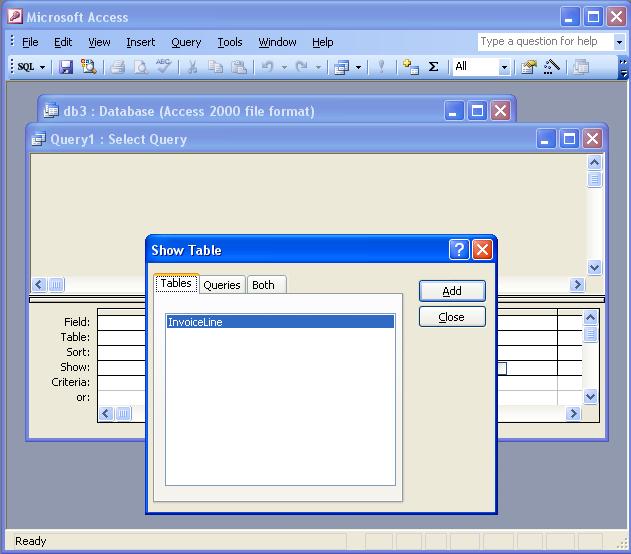
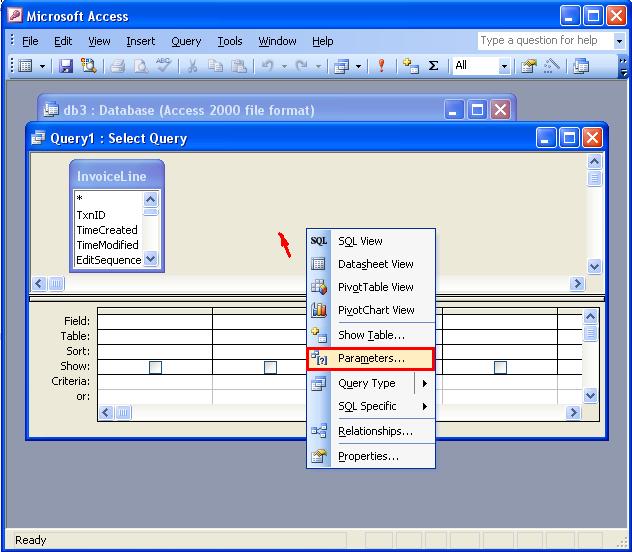
Move your mouse to the main pane and right click and select Parameters... :
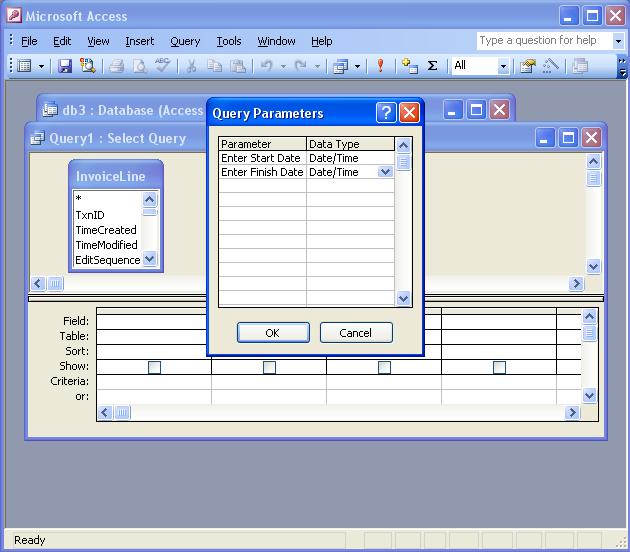
Enter the PARAMETERS for Enter Start Date and Enter Finish Date as shown and click [ OK ] :
Back on the main pane right click and select SQL View... :
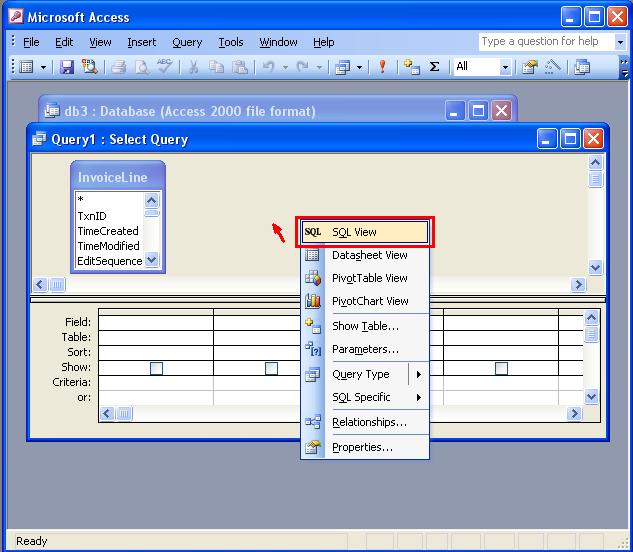
The parameters that were entered are shown.
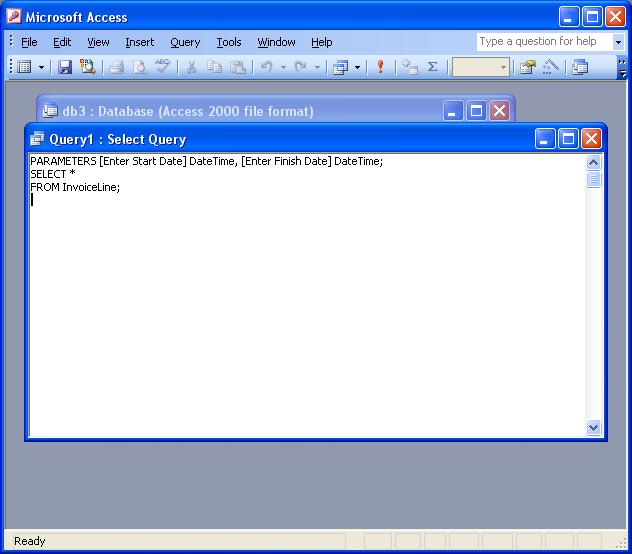
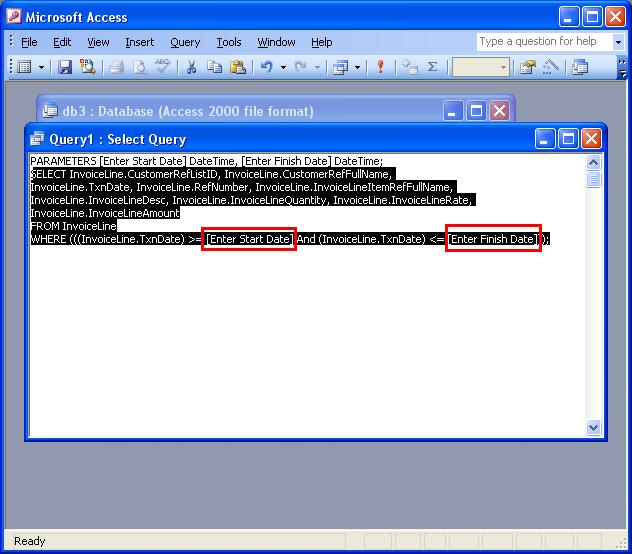
You can now simply paste in your own SQL statement using the parameters (enclosed in [ ]), for example:
SELECT InvoiceLine.CustomerRefListID, InvoiceLine.CustomerRefFullName,
InvoiceLine.TxnDate, InvoiceLine.RefNumber, InvoiceLine.InvoiceLineItemRefFullName,
InvoiceLine.InvoiceLineDesc, InvoiceLine.InvoiceLineQuantity, InvoiceLine.InvoiceLineRate, InvoiceLine.InvoiceLineAmount
FROM InvoiceLine
WHERE (((InvoiceLine.TxnDate) >= [Enter Start Date] And (InvoiceLine.TxnDate) <= [Enter Finish Date]));
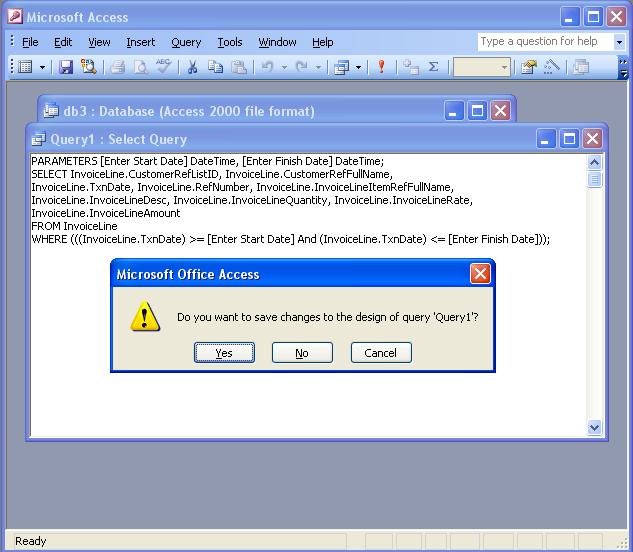
Click on the red [X] to close the query. Save the design :
When the query is run either as a query or a report, it will now prompt you to Enter Start Date :
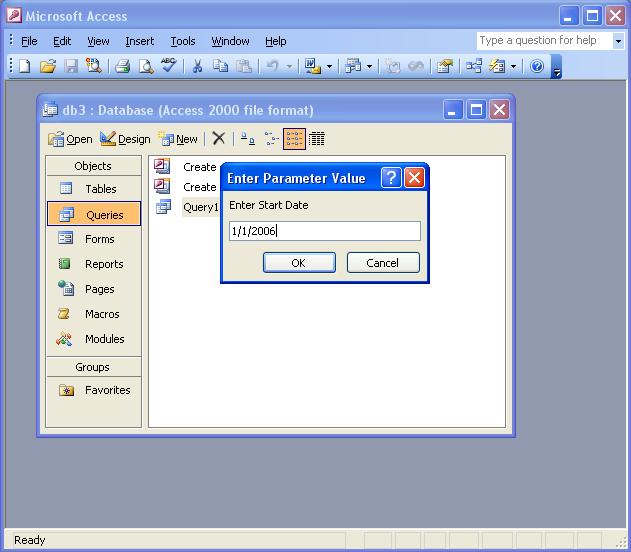
Then Enter Finish Date :
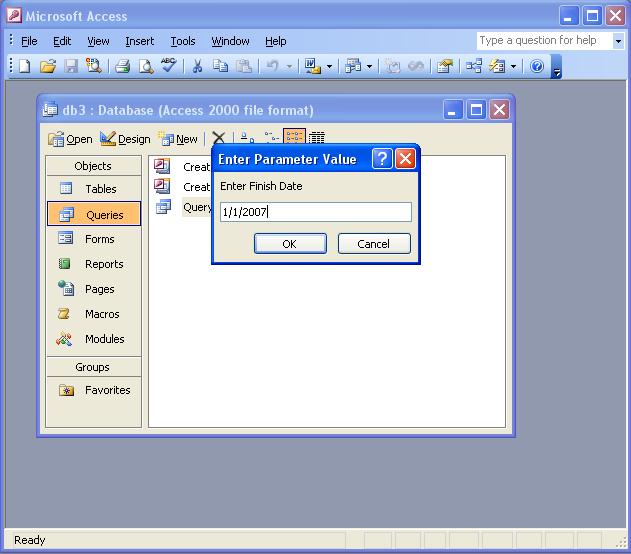
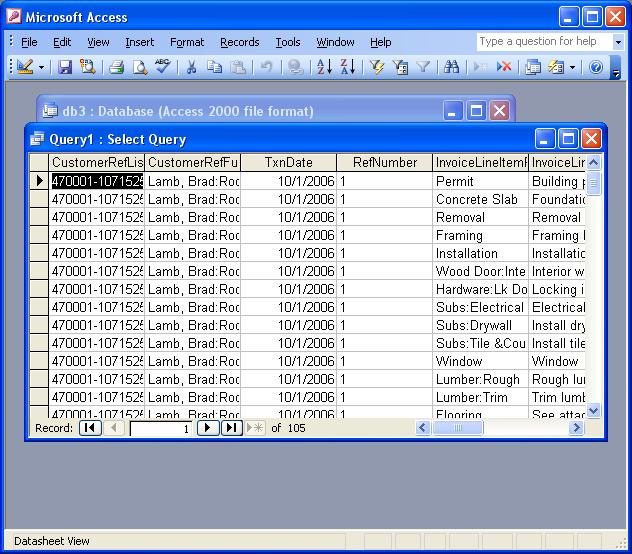
and the query will then run and return the Invoice Lines for the date range selected:
|