|
Buy Support
Incidents |
|
If you can't find your answer
in the FREE PUBLIC QDeveloper Forum, require URGENT Priority Support, or you need to send us
private or confidential information: |
|
Click Here
|
If you can't
login and post questions or you are having trouble viewing forum posts:
Click Here
|
Callback
Support |
|
If you live in USA, UK, Canada, Australia or New
Zealand, you can leave us details on your question and request us to call you back and discuss
them with you personally (charges apply). |
|
Click Here
|
Buy Support
Incidents |
|
If you can't find your answer
in the FREE PUBLIC QDeveloper Forum, require URGENT Priority Support, or you need to send us
private or confidential information: |
|
Click Here
|
|
| Identity is incorrect |
| Author |
Message |
|
|
| Posted : 2008-06-06 07:47:58 |
I'm not sure what happened, but our linked server queries(although they were verrrry slow!) were working until the server got restarted. Now it does not work at all.
I'm getting the following errors:
SQLSetConnectAttr failed
QB Open Connection Failed. Create DCOM Instance Error = 8000401a, Unknown error.. Created qbXMLRP2 OK.
I ran the DCOMCNFG.EXE utility and gave permission to Internet Guest Account (<IUSR_<machine_name>), ASP.NET Machine Account (ASPNET) and INTERACTIVE accounts.
When I run the Test DCOM Script to troubleshoot the linked server, I get successful messages except for the following errors:
QBXMLRPEQODBCInteractive.RequestProcessor 'The server process could not be started because the configured identity is incorrect. Check the username and password.
QBXMLRP2EQODBCInteractive.RequestProcessor 'The server process could not be started because the configured identity is incorrect. Check the username and password.'
We have a 3-user QB license and one of the licenses is being used on the server. What 'configured identity' is it referring to? |
|
|
|
| Tom |
 |
| Group | : Administrator |
| Posts | : 5510 |
| Joined | : 2006-02-17 |
|
| Profile |
|
| Posted : 2008-06-06 07:57:25 |
|
|
|
|
|
| Posted : 2008-08-27 01:33:39 |
I am having a very similar problem with a formerly working linked server on SQL Server 2005, Windows Server 2003, QODBC Server Edition 2008 v8.00.00.242. I get these error messages:
OLE DB provider "MSDASQL" for linked server "QODBC" returned message "[Microsoft][ODBC Driver Manager] Driver's SQLSetConnectAttr failed".
OLE DB provider "MSDASQL" for linked server "QODBC" returned message "[QODBC] QB Open Connection Failed. Create DCOM Instance Error = 8000401a, Unknown error.. Created qbXMLRP2 OK.".
Msg 7303, Level 16, State 1, Line 1
Cannot initialize the data source object of OLE DB provider "MSDASQL" for linked server "QODBC".
The connection works from the VB demo, but not from the linked server. I have been through the manual DCOM configuration again and everything looked fine. Any ideas? |
|
|
|
| Tom |
| |
| Group | : Administrator |
| Posts | : 5510 |
| Joined | : 2006-02-17 |
|
| Profile |
|
| Posted : 2008-08-27 08:12:57 |
You need to give all your AUTHENTICATED USERS rights to the C:\Program Files\QODBC Driver for QuickBooks\ using the Security tab.
Give all your AUTHENTICATED USERS and INTERACTIVE accounts permissions to launch and access qbXMLRP2eQODBCInteractive.exe DCOM object using dcomcnfg by doing the following:
1. Launch DCOMCNFG.EXE by clicking the Start button, selecting Run, and typing "Dcomcnfg" in the Run dialog box.
2. Expand the ‘Console Root’ tree to the following: Console Root->Computers->My Computer->DCom Config
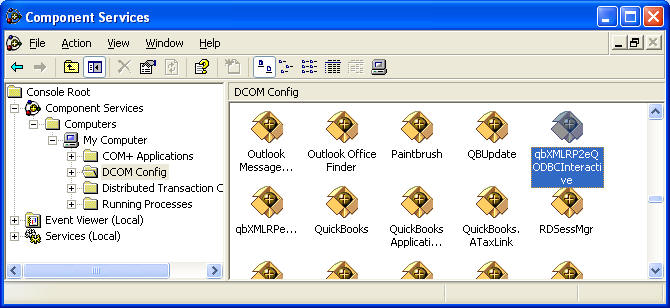
3. Highlight qbXMLRP2eQODBCInteractive and select Action->Properties from the Main menu (Or right click menu).
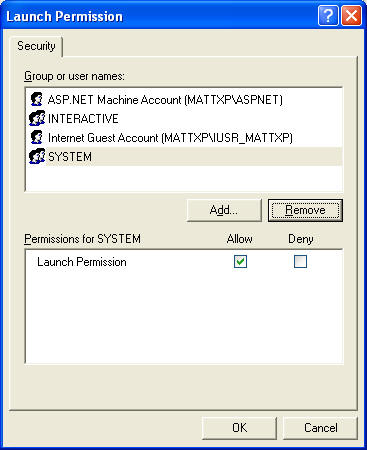
4. In the Security tab select 'Customize’ in the ‘Launch Permissions' frame and click Edit, then add all your AUTHENTICATED USERS, Internet Guest Account (<IUSR_<machine_name>), ASP.NET Machine Account (ASPNET) and INTERACTIVE to the Launch Permissions dialog box.
|
|
|
|
|